Bundle builder
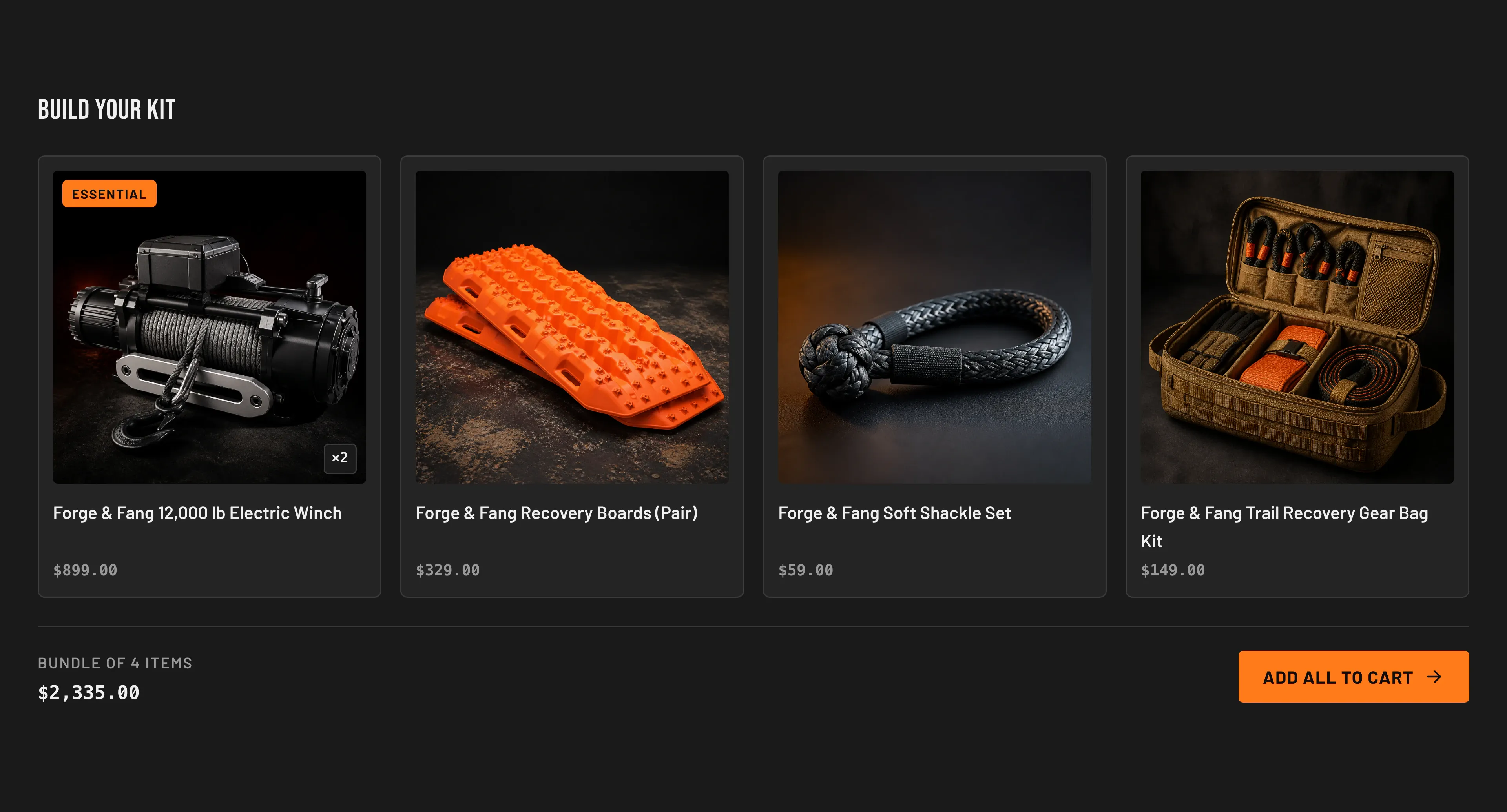
The Bundle builder shows a grid of product cards — one per item in the kit — followed by a summary bar with the bundle’s combined item count, total price, and an Add all to cart button. Clicking the button adds every included product to the cart at once.
How items add to the cart
Section titled “How items add to the cart”Each card represents a real Shopify product you choose in the theme editor. For each item the theme reads the product’s first available variant and the quantity you set, then builds a single request to Shopify’s standard cart endpoint. One click on Add all to cart adds every item to the cart in one operation, and (if your store uses the cart drawer) opens the drawer so the shopper can review the kit.
A few behaviors worth knowing:
- The button is disabled until at least one item resolves to an available variant. An item whose product is empty or fully sold out is skipped from the add-to-cart action.
- The summary reflects only the items that have an available variant. The “Bundle of N items” count is the number of distinct included products that resolve to an available variant — one per item block, regardless of its quantity — while the total price is the sum of each item’s price times its quantity.
- If Shopify rejects the add (for example, an item went out of stock between page load and click), the shopper sees a short error and nothing is added.
Add the section and its items
Section titled “Add the section and its items”Add the section
In the theme editor, open the page (or template) where the kit should appear and choose Add section → Bundle builder. It starts with four empty item blocks.
Pick a product
Select an item block (each is a Bundle product block) and, in the block’s settings, pick the product under Product.
Add or remove items
Repeat for each product in the kit. To add more, use Add block → Bundle product; to remove one, delete the block.
Reorder the grid
Reorder items by dragging the blocks in the editor — the grid follows block order.
Your kit is assembled. Set each item’s quantity and optional badge in its block settings, and tune the section’s heading, button, and layout below.
You can include between one and six products (the section’s block limit). Each item block has these settings:
| Setting | What it does | Default |
|---|---|---|
| Product | The Shopify product shown in this card. The card uses the product’s featured image, title, price, and first available variant. | — |
| Quantity | How many of this product the Add all to cart button adds (1–10). When greater than 1, a small “×N” badge appears on the image. | 1 |
| Badge label | Optional short tag shown over the product image, e.g. “Essential”. Leave blank for no badge. | — |
Heading, button, and layout settings
Section titled “Heading, button, and layout settings”The section’s own settings (select the section header, not an item block) control its wrapper:
| Setting | What it does | Default |
|---|---|---|
| Heading | The headline above the kit grid. | ”Build your kit” |
| Subheading | Rich-text supporting copy under the heading. | Empty |
| Button label | Text on the add-to-cart button. | ”Add all to cart” |
| Color scheme | Which theme color scheme paints this section. | Scheme 1 |
| Top padding / Bottom padding | Vertical spacing around the section, in pixels (0–120). | 80 / 80 |
The summary bar’s “Bundle of N items” count and price are generated automatically — there is no separate field for them. The count is how many included products resolve to an available variant (one per item block, regardless of quantity); the price is the sum of each item’s price times its quantity.
Showing a bundle discount
Section titled “Showing a bundle discount”Torquex’s Bundle builder displays the sum of the included products’ prices; it does not apply a discount by itself. To actually charge less for the kit, use Shopify’s native discount tools, which the theme respects at checkout:
- Create an automatic discount or a discount code in Shopify admin → Discounts that targets the kit’s products (for example, a “buy these together” automatic discount, or a percentage off the relevant products/collection).
- Communicate the saving in the section’s Subheading so shoppers understand the value before they add the kit.
Related: Bundle promo · Cart · Torquex support replies within 12 hours.