Bundle promo
Bundle promo is a two-column marketing section: a large featured image on one side, and on the other a heading, supporting copy, the featured product’s price, an Includes list of the items in the kit, and a call-to-action button. It is designed to send shoppers to a product page — it does not add anything to the cart.
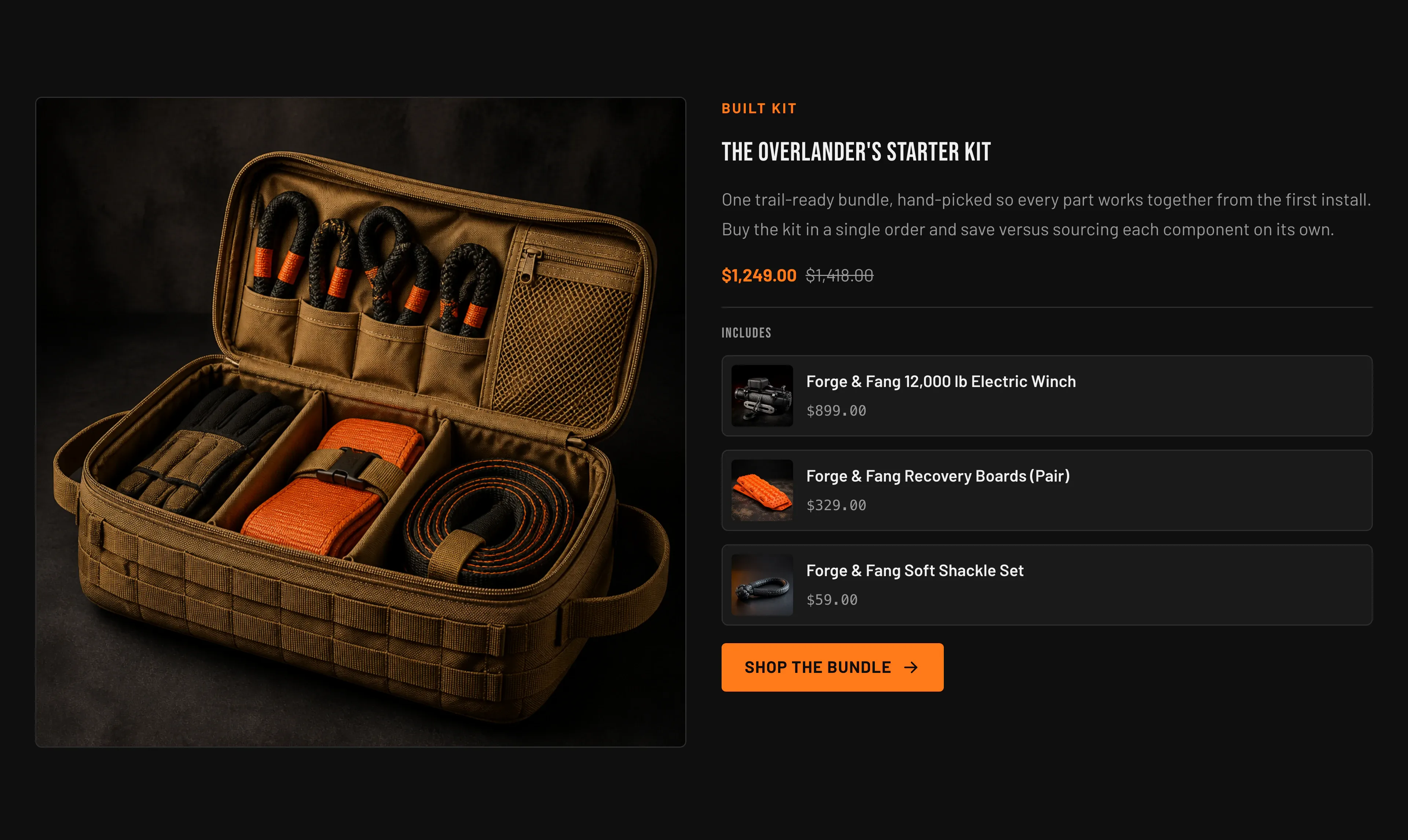
Use Bundle promo when you sell the kit as a single Shopify product (one product with its own price and inventory) and want to showcase, visually, what comes inside it.
Add the section
Section titled “Add the section”- In the theme editor, choose Add section → Bundle promo (under the Products category).
- In the section settings, set the Featured product — this drives the main image, the price shown, and the default destination of the button.
- Fill in the Eyebrow label, Heading, and Subheading copy.
- Fill in the Includes list. Bundle promo starts with three empty Included product blocks (the same way Bundle builder starts with four), so assign a product to each one you keep, delete the ones you don’t need, and use Add block → Included product if you want more.
Section settings
Section titled “Section settings”Select the section header to edit these:
| Setting | What it does | Default |
|---|---|---|
| Featured product | The product the section promotes. Supplies the large image, the displayed price, and the fallback button link (the product’s page). | — |
| Eyebrow label | Small accent label above the heading. | ”Built kit” |
| Heading | The section headline. | ”The overlander’s starter kit” |
| Subheading | Rich-text supporting copy. | Provided sample copy |
| Button label | Text on the call-to-action button. When set, a Button link field appears. | Empty (the button shows “Shop the bundle” until you enter your own text) |
| Button link | Where the button points. Only shown after you enter a button label; otherwise the button links to the featured product. | — |
| Color scheme | Which theme color scheme paints this section. | Scheme 2 |
| Top padding / Bottom padding | Vertical spacing in pixels (0–120). | 80 / 80 |
If you leave the featured product empty, the section still renders with an image placeholder, but the price and the default button link will not appear.
Included product blocks
Section titled “Included product blocks”The Includes list is built from Included product blocks. Each block exposes a single setting:
| Setting | What it does | Default |
|---|---|---|
| Product | The product shown as one row in the Includes list, with its image, title, and price. Each row links to that product’s page. | — |
You can add up to four Included product blocks. The Includes heading only appears when at least one block is present. A block with no product assigned shows a placeholder row, so assign a real product to every one you keep.
Related: Bundle builder · Cart · Torquex support replies within 12 hours.