Cart & checkout
This page covers the cart and checkout chrome in Torquex: how customers review their cart (drawer or full page), the on-page elements that support adding items (sticky add-to-cart bar, local pickup, trust badges), and the global Theme settings that affect checkout and prices. Torquex controls the storefront presentation up to the checkout button; everything after a customer reaches Shopify Checkout is managed by Shopify and your store settings, not the theme.
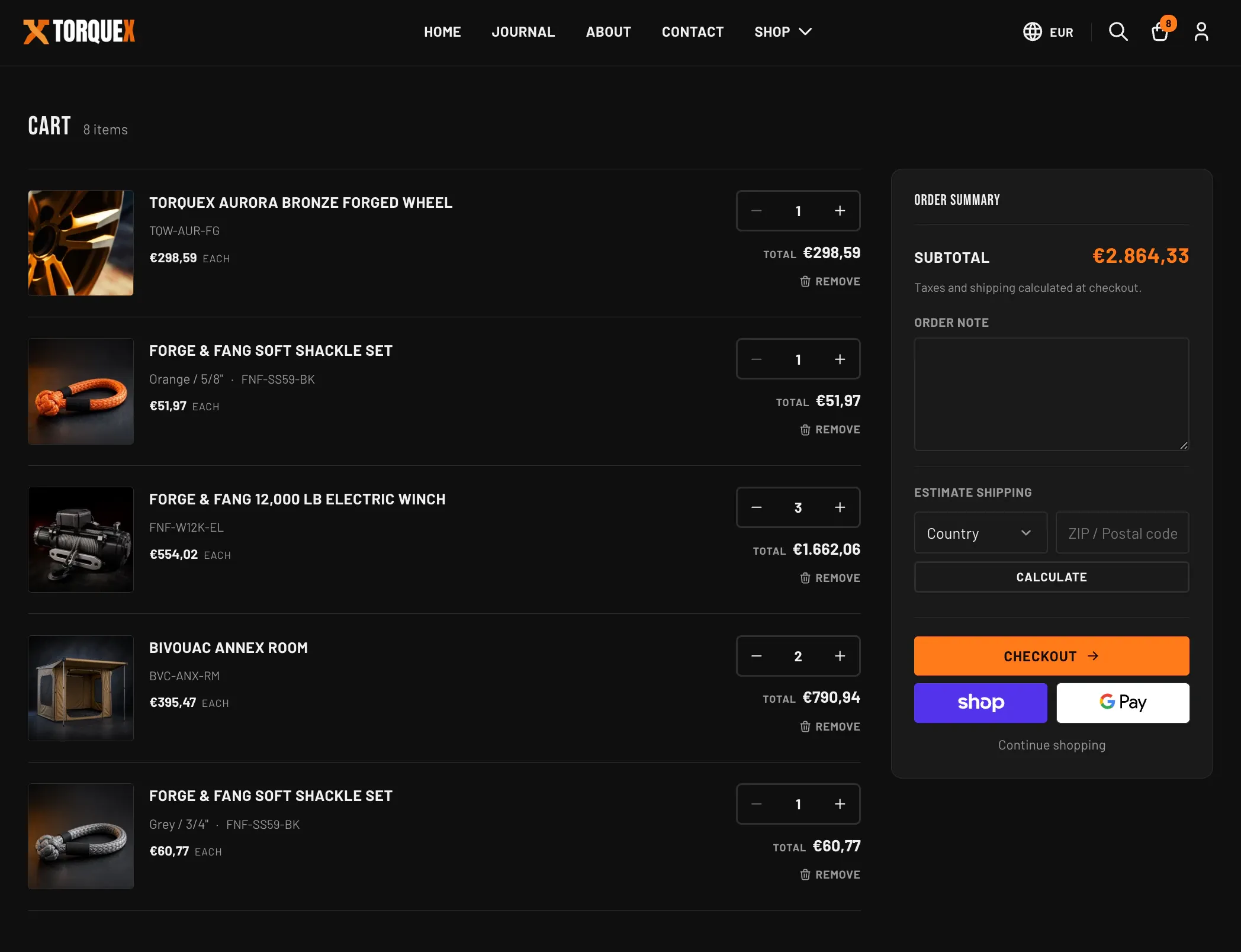
Cart drawer vs. cart page
Section titled “Cart drawer vs. cart page”Torquex ships two cart experiences and you choose one for the whole store with a single setting.
- Go to Theme settings → Cart in the theme editor.
- Set Cart type to either Drawer or Page.
| Setting | What it does | Default |
|---|---|---|
| Cart type | Drawer opens a slide-in cart panel from the side of the screen when a customer adds an item; Page sends customers to the full cart page at /cart instead. | Drawer |
| Cart icon | Chooses the icon used for the cart throughout the theme (header, empty-cart states, sticky add-to-cart button). Options: Bag, Cart, Basket. | Bag |
When Cart type is set to Drawer, the Cart drawer renders and adding a product opens it instead of navigating away. When set to Page, the drawer markup is not output and customers land on the Cart page template. The cart page always exists at /cart regardless of this setting (the drawer’s View cart button links to it), so even with the drawer enabled customers can still open the full page.
Cart drawer
Section titled “Cart drawer”The Cart drawer is the slide-in panel that opens when Cart type is Drawer. It is part of the theme chrome — you do not place it on a template — and it has no editable settings of its own. For its full line-item layout, footer, and inventory behavior, see Cart drawer in the Popups and drawers group.
Cart page
Section titled “Cart page”The Cart page (the Cart page section) is the full-page cart used when Cart type is Page, and is also reachable any time at /cart. Open it in the theme editor by selecting the Cart template, then adjust the section’s settings.
Cart options (the section’s settings):
| Setting | What it does | Default |
|---|---|---|
| Show order note field | Adds an Order note text box to the cart summary so customers can leave instructions. The note is saved on the cart and passed to the order. | On |
| Show shipping estimator | Adds an Estimate shipping block (country selector + postal code + Calculate) so customers can preview shipping rates before checkout. Requires JavaScript and uses your store’s configured shipping rates. | On |
Recommended product (the section’s settings) — an upsell strip shown beneath the cart items:
| Setting | What it does | Default |
|---|---|---|
| Show recommended product | Shows the first available products from the collection below, beneath the cart items, under a “Complete your build” heading. | On |
| Recommendation collection | The collection to pull the recommended products from. Nothing renders until you pick a collection. | — |
| Number of products | How many products to show from that collection (1–6). | 2 |
Single-variant recommended products get a one-click Add button; products with variants link to the product page to choose options.
Layout (the section’s settings):
| Setting | What it does | Default |
|---|---|---|
| Color scheme | The color scheme applied to the cart page section. | Scheme 1 |
| Padding top / Padding bottom | Vertical spacing above and below the section (0–120 px). | 48 / 72 px |
The cart page also supports app blocks, so apps that add a block to the cart (for example, gift wrapping or warranty add-ons) render below the cart. No third-party app is required for any built-in feature described here.
Cart notes and shipping estimate
Section titled “Cart notes and shipping estimate”Torquex does not include a free-shipping progress bar. The two cart-level helpers it does provide both live on the Cart page and are controlled by the section settings above:
- Order note — a free-text field saved to the cart (toggled by Show order note field).
- Shipping estimator — an in-cart rate preview (toggled by Show shipping estimator).
Both apply to the cart page only; the cart drawer does not include a note field or estimator.
Sticky add-to-cart bar
Section titled “Sticky add-to-cart bar”The Sticky add-to-cart bar (the Sticky add-to-cart bar section) is a slim bar that pins to the bottom of the product page after the customer scrolls past the main add-to-cart button. It shows the product thumbnail, title, current price, a variant selector (for multi-variant products), and an Add to cart button. It stays in sync with the main product form: changing the variant in either place updates both, including price and sold-out state.
This section is enabled only on the product template and is included by default in Torquex’s product template. To add, remove, or configure it, open a product template in the theme editor and select the Sticky add-to-cart bar section.
| Setting | What it does | Default |
|---|---|---|
| Show bar after scrolling | How far down the page a visitor scrolls (in px) before the bar appears (200–800, in 50px steps). | 400 px |
| Hide on mobile | When on, the sticky bar is not shown on phone-sized screens. Turn off to show it on mobile too. | On |
Local store pickup
Section titled “Local store pickup”Torquex surfaces Shopify’s local pickup availability on the product page. Pickup is configured in your Shopify admin (Settings → Shipping and delivery → Local pickup) per location — the theme only displays what Shopify reports for the selected variant. If a variant has no pickup-enabled locations, nothing renders.
Pickup availability is surfaced by the Pickup availability block inside the product section. This block is included by default in Torquex’s product template; to move or remove it, open a product template in the theme editor and adjust the product section’s blocks. It updates automatically when the customer changes the variant.
When pickup is available, the product page shows a green status dot, “Pickup available at” with the store name, the prepared-time text Shopify provides, and a View store info link that opens a dialog listing every location with its status and formatted address. When the variant has locations but none currently offer pickup, it shows a “Pickup currently unavailable” message instead.
Trust badges
Section titled “Trust badges”Trust badges — the icon + text reassurance row is documented as its own section. See Trust badges.
Checkout settings
Section titled “Checkout settings”These global settings affect what the theme renders around checkout. They sit under Theme settings → Checkout. Note that the Shopify Checkout pages themselves — payment, shipping, and the order confirmation — are controlled by Shopify and your store’s checkout settings, not by Torquex.
| Setting | What it does | Default |
|---|---|---|
| Show accelerated checkout buttons | Renders the accelerated (express) checkout buttons — Shop Pay, PayPal, and other express wallets — on the product and cart templates, when available. These appear beneath the standard Checkout button in the cart drawer and on the cart page. | On |
| Show Shop Pay installments banner | Renders the Shop Pay installments banner on product templates, when available, so customers can see pay-over-time options. | On |
On the product page, the express checkout (dynamic checkout) button is additionally gated by a block setting:
- Open the Buy buttons block on a product template and toggle Show dynamic checkout button. This lets customers check out instantly with Shop Pay, PayPal, and other express wallets, and requires Show accelerated checkout buttons to be enabled in theme settings as well.
Currency code display
Section titled “Currency code display”Torquex can append the currency code to every price across the storefront. Find this under Theme settings → Currency.
| Setting | What it does | Default |
|---|---|---|
| Show currency codes | Appends the currency code (for example, USD) to prices wherever they appear — product, cart, and checkout-adjacent prices alike. Recommended for multi-currency stores so customers can tell which currency they are seeing. | Off |
When this is on, prices render with their currency code; when off, prices use your store’s plain money format. This is purely a display choice and does not change the currency a customer is charged in — Shopify’s market and currency settings determine that.
Related: Product pages for the buy buttons, variant picker, and sticky bar placement · Theme settings for color schemes and global options. Still stuck? Torquex support replies within 12 hours.