Search drawer
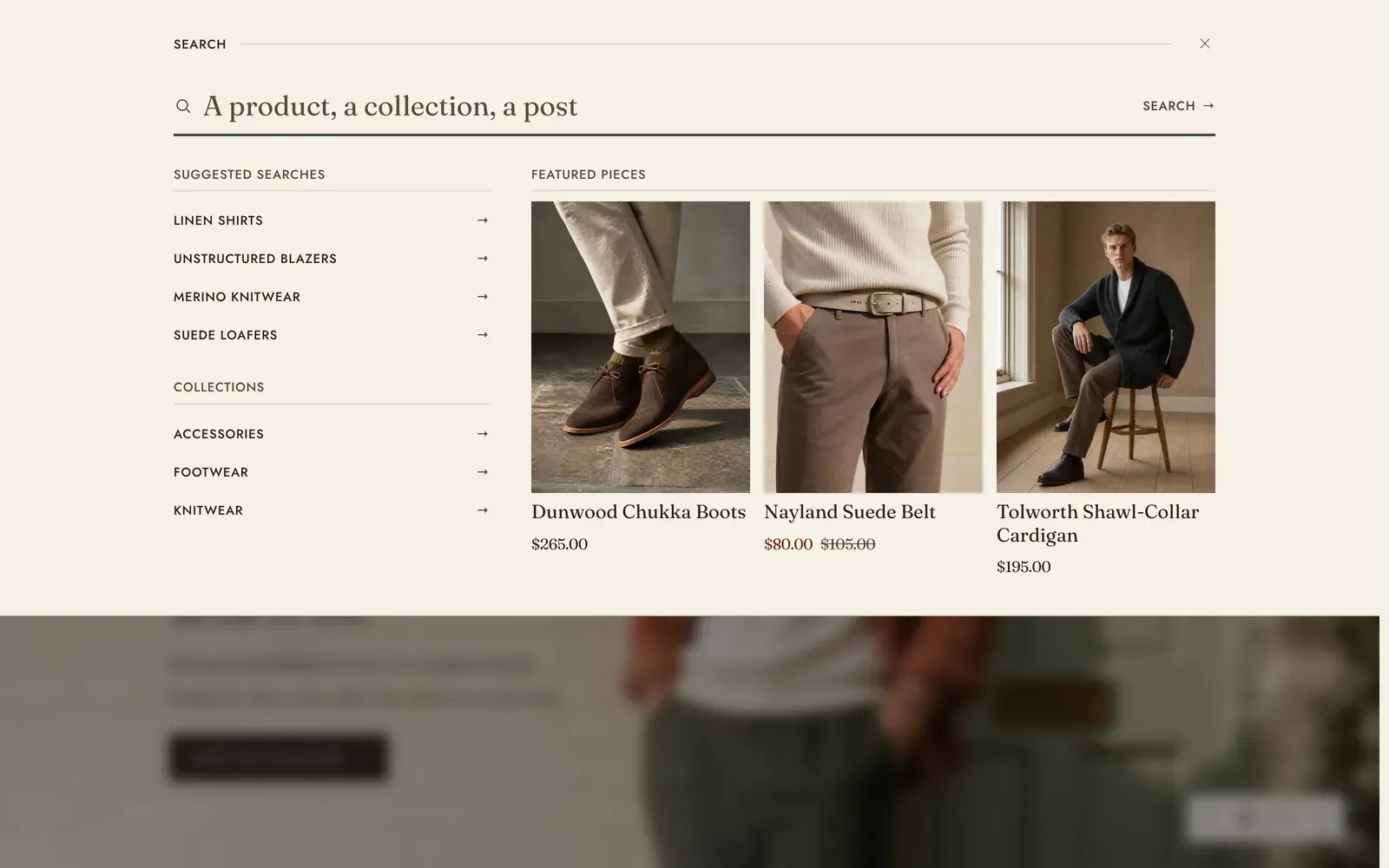
The search drawer is the sheet that drops from the top edge of the screen when a shopper presses the search icon in the header. Like the cart drawer it is theme chrome: it lives in the Overlay section group, it is always present, and you configure it rather than add it.
To reach it, open Online Store → Themes → Customize, then open the Overlay group at the foot of the section list and select Search. Selecting it opens the sheet in the preview so you can edit it with it in front of you.
What it does: Turns the header’s search icon into a panel instead of a page change. It fills the wait before a shopper types with something worth looking at: the searches you want run, the collections you want browsed, and a handful of pieces you want seen.
What the shopper sees
Section titled “What the shopper sees”The panel has two states in one well.
Idle, before anything is typed, it shows whatever you have curated below. Leave all three settings empty and the panel is the search field alone.
Live, from the second character typed, the curated content stands down and Shopify’s own suggestions take its place. That is up to six products, then up to four collections and four blog posts, ranked by Shopify.
Clearing the field brings the curated content back. Submitting the field at any point goes to the full search results page. See Collection and search.
Key settings
Section titled “Key settings”| Setting | What it does | Default |
|---|---|---|
| Suggested searches | A list of terms, separated by commas, such as Linen shirts, Overshirts, Selvedge denim. Each one is a link that runs the search it names. | None |
| Collections | Up to five collections, shown as quick links for shoppers who would rather browse than type. | None |
| Featured pieces | Up to six products, shown as cards beside the suggestions. They give way to live results as soon as the shopper types. | None |
Blocks: none. The panel is a fixed composition.
Settings that live elsewhere
Section titled “Settings that live elsewhere”Two theme settings govern the panel, both under Theme settings → Search. See Search and filters.
- Suggest results as the visitor types. On by default. Turn it off and no live results are drawn at all. The field becomes a plain search form, and the curated content stays exactly as it is.
- Image ratio. The shape product images take, both on the featured pieces shelf and in the live results that replace it. The two shelves share one figure, so a shopper watching the swap does not see the photographs re-cut. The small thumbnail beside an individual suggestion keeps its own shape.
The sheet takes the popup and dialog color scheme from Theme settings → Colors, not the drawer scheme, so the field and the suggestions under it read as one surface. See Colors.
If you have named a gift wrap product in Theme settings → Gift wrapping, it is dropped from the featured pieces shelf and from the live results. A shopper typing “gift” is the likeliest person of all to be offered it by accident.
Live results
Section titled “Live results”The live results are drawn by a hidden section called Predictive search. It is never placed on a page and has no settings: Shopify renders it on demand each time the query changes, and the theme drops it into the panel. Everything you can control about it is either on this panel or in Theme settings → Search.
Each suggestion is a link. A product carries a thumbnail, a title and a price. Collections and blog posts carry a title.
A query that finds nothing does not answer with an empty panel. It names the query, says so in a sentence, offers a button into the whole catalog, and puts up a short shelf of collections to start from instead.
Keyboard and screen readers
Section titled “Keyboard and screen readers”The sheet is a real dialog. Opening it puts the caret straight in the search field rather than on the close button, since the panel exists to take a query. Esc closes it, so does a click on the dimmed page behind, and Tab cycles inside the panel rather than escaping to the page underneath. Closing returns focus to the search icon that opened it, and the page behind never scrolls while it is open.
With live results on, the down and up arrows walk the suggestions and Enter follows one. Pressing up from the first suggestion goes back to the field. A hidden status line announces how many results arrived, so the count is spoken rather than only shown.
Related: Search and filters · Collection and search · Cart drawer · Lapels support replies within 12 hours.